
📅 Change Next Shipment DateUpdated 5 months ago
Planning ahead?
Move up or push back your next shipment with just a few clicks!
1. Log in to your Wuffes account.
2. Once you have logged in to your account, there are 2 ways to change your next shipment date: The Quick Change option, and the default option.
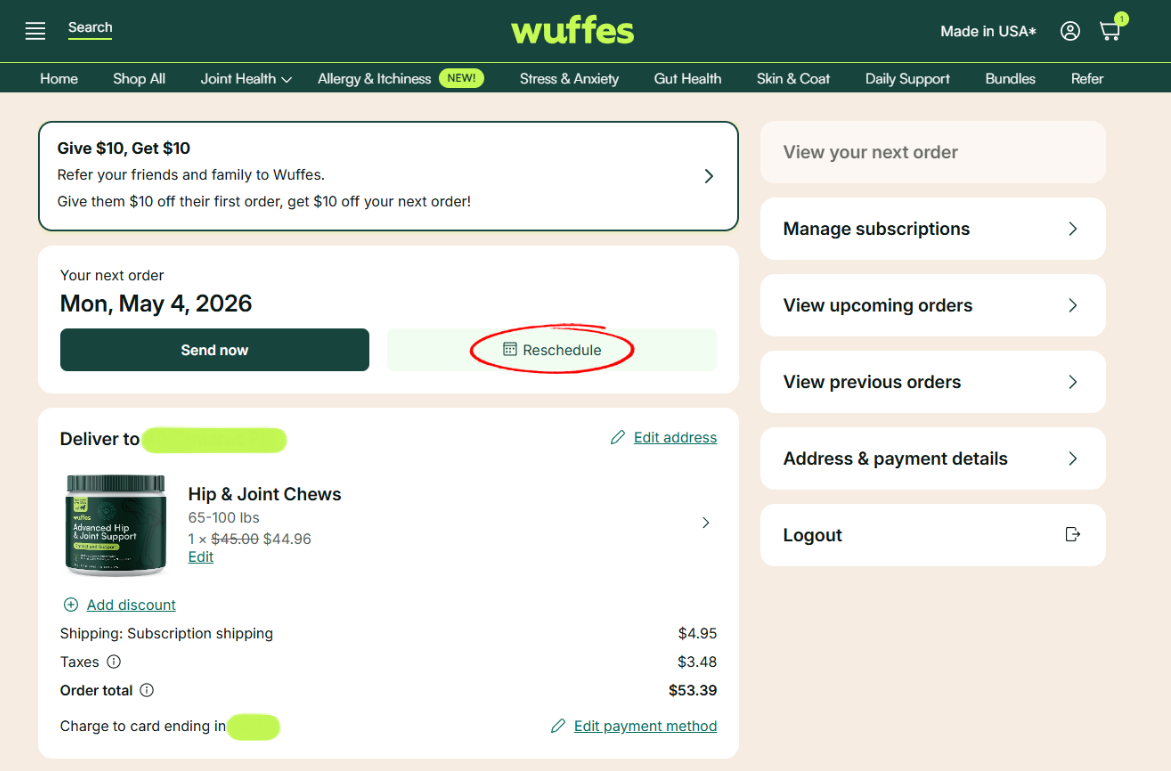
3. The quick change option will show for your closest subscription to be shipped (if you have multiple subscriptions). To quickly change the date of your next autoship order, simply click on the option "Reschedule" on the main page, and select the date of your next autoship order.
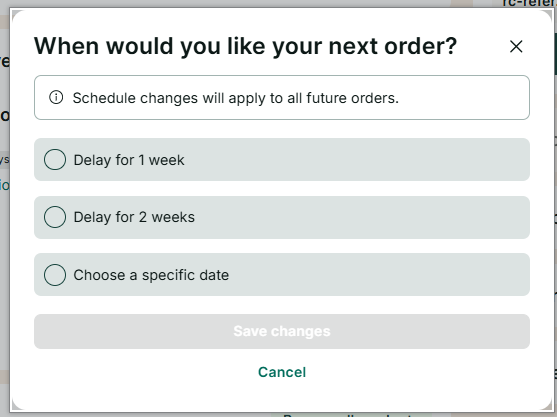
3. You'll have the option to delay your next order for 1 week, 2 weeks, or reschedule until a specific date. Once you've made the desired changes, make sure to click the button "Save Changes" to confirm your new date.
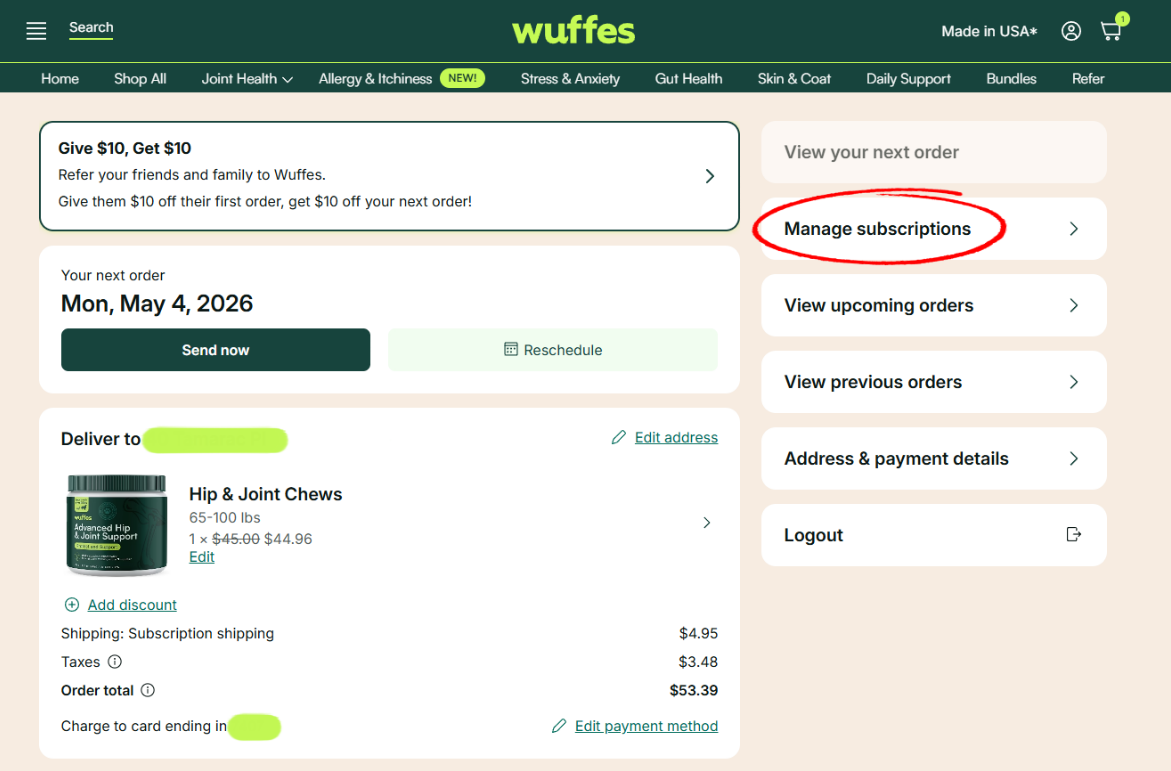
2. If you wish to change the next shipment date for a different subscription, click on "Manage subscriptions" to see all your active subscriptions
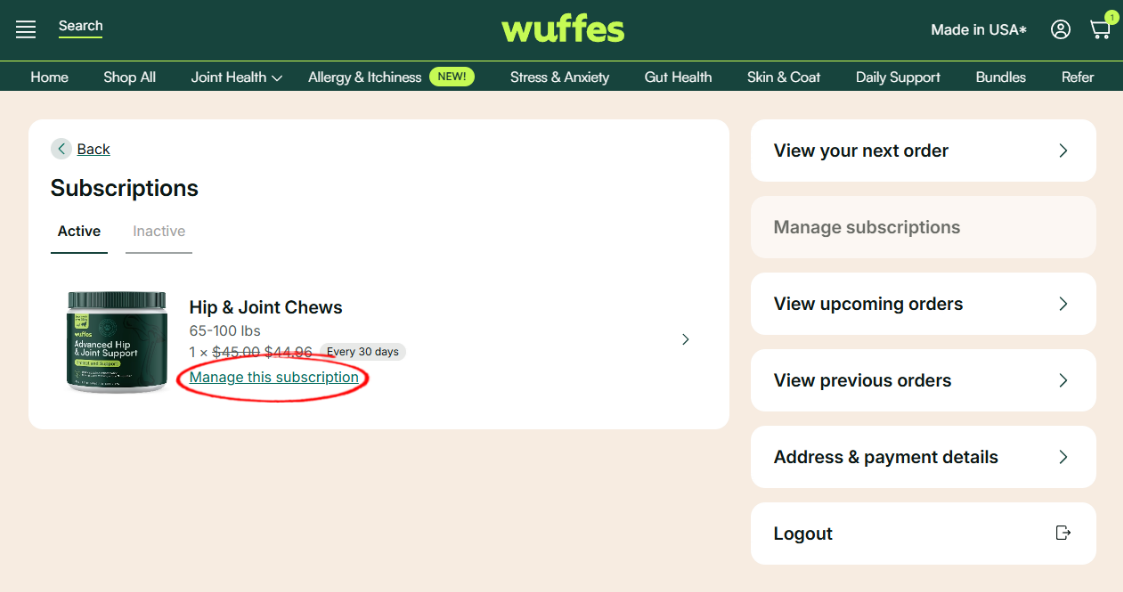
3. Click on "Manage this subscription" to see the subscription details
4. On this page, you can select the option "Reschedule" to reschedule only your next autoship order, as shown previously, and continue with your regular autoship schedule.
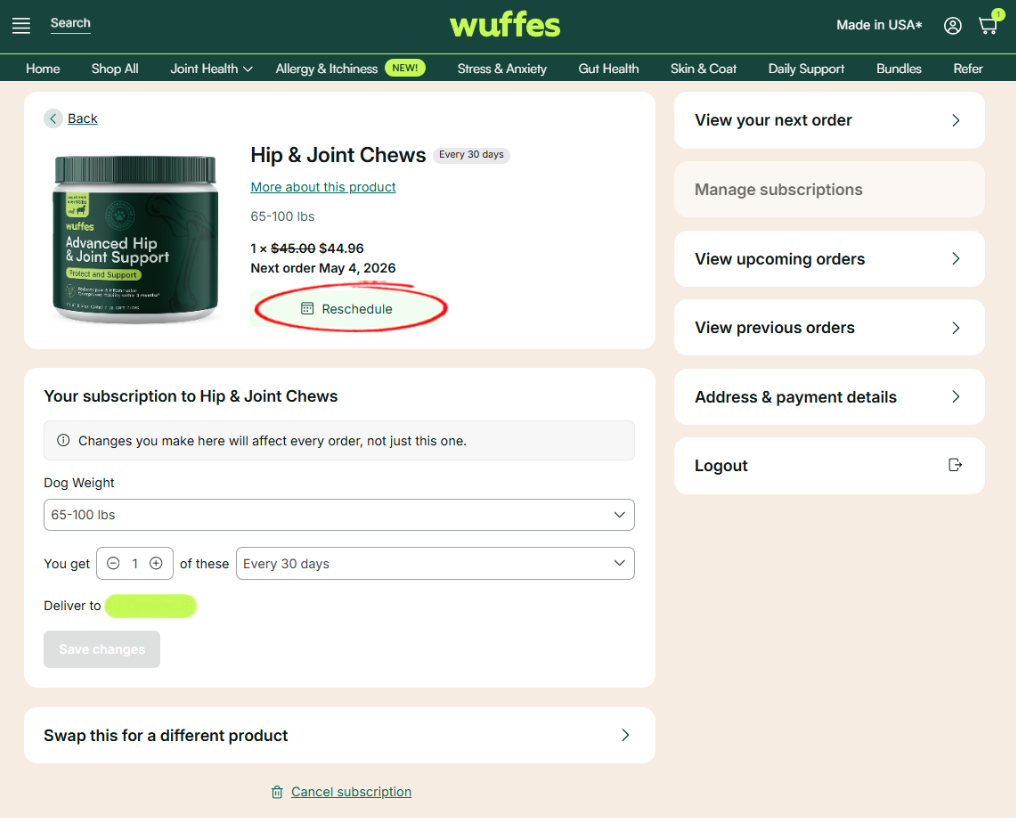
5. Finally, click on the option "Save changes" to confirm.